
A venture capital fund was reviewing more than 1,000 opportunities a year using Pipedrive, Excel, OneDrive, and WhatsApp. Analysts wrote each summary in ChatGPT and pasted it into the CRM by hand. Meeting notes were lost because uploading them depended on each person remembering to do it. For the weekly committee meeting, they exported everything to Excel and rebuilt the same reports from scratch, over and over.
It sounds like a joke, but it happened.
When we started working with them, they told us they needed to migrate their information. We explained that moving information to Notion for the sake of moving it was possible, but there was also an opportunity to examine which data from the source tool were worth bringing over.
This article explains how we approach a Pipedrive-to-Notion migration, using this project as an example.
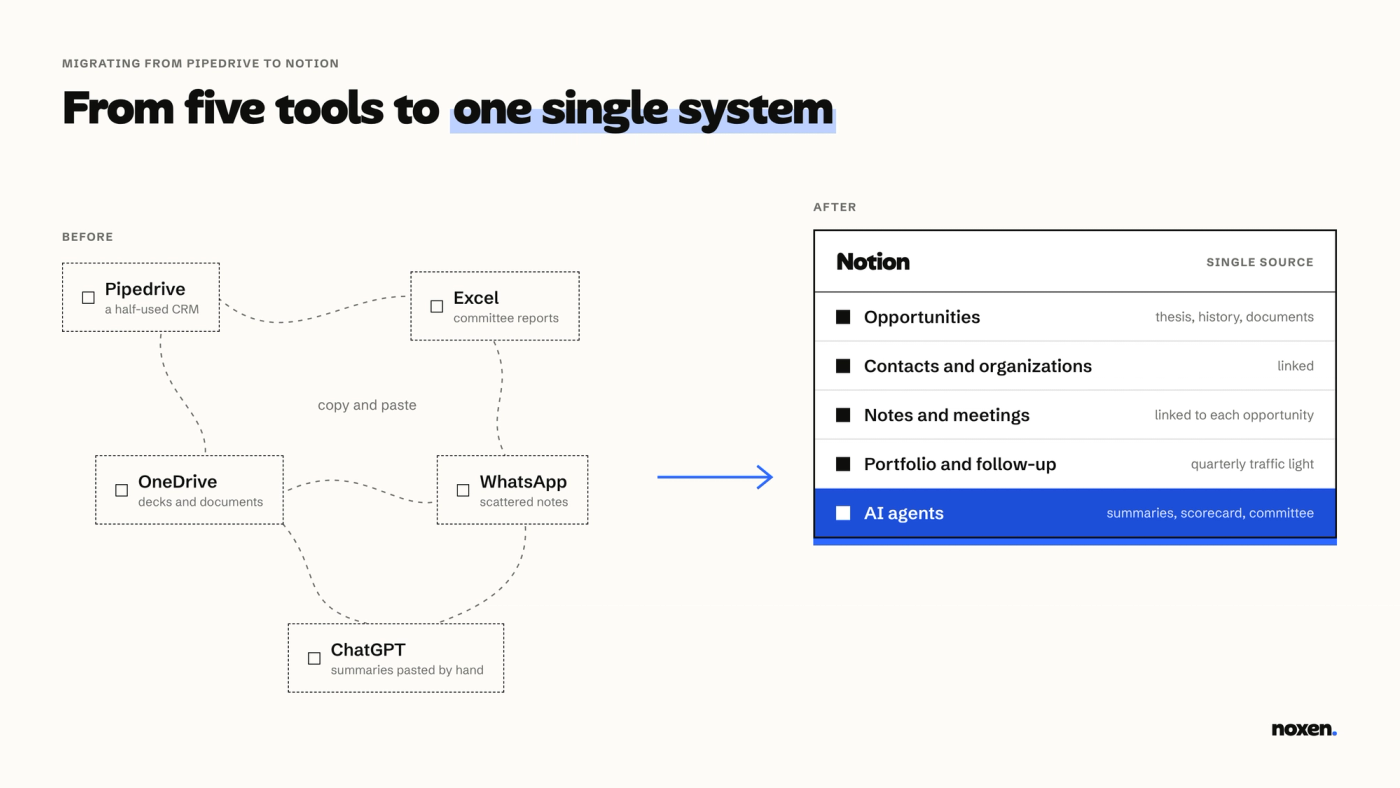
When it makes sense to leave Pipedrive for Notion, and when it does not
Pipedrive is a good sales CRM. If your team relies on sales pipelines with email automation, calling, and revenue forecasting, you may not need to move.
Notion is a good fit when:
- Your process is not a linear sale: investments, partnerships, supplier selection, or projects.
- Information lives outside the CRM, in documents, notes, emails, or spreadsheets, and no one can see it all in one place.
- You want AI agents to work with structured data and context, not isolated fields that no one fills in.
- You are paying for CRM licences for a small team that uses 20% of the features.
Step 1: audit before exporting anything
For the Pipedrive-to-Notion migration, we held five individual interviews, one with each stakeholder on the team, reviewed their Notion workspace, and analysed the Pipedrive database. The result was a report that classified the pain points and set priorities.
What to ask the people who use the CRM every day:
- Which fields do you always fill in, and which ones do you never use?
- What do you do outside the CRM because it does not work for you, such as Excel, notes, or WhatsApp?
- Which reports do you produce every week or month, and how do you build them?
- Which piece of information do you look for most often, and what is difficult to find?
In the database, review:
- Contacts with no contact details.
- Duplicate organisations or inconsistent names.
- Custom fields that are empty or used differently by each person.
- Records that should not be there, such as tests, old imports, or dead leads.
The client's data had years of accumulated deterioration. That is normal. Migrating it as-is would have moved the problem into Notion.
Step 2: decide what to migrate, archive, and discard
Not everything belongs in the new system. Our rule:
- Migrate and use: active opportunities, contacts, and organisations, plus notes with useful context.
- Migrate and archive: history that you want to be able to consult but that does not belong in daily views.
- Do not migrate: duplicates, empty records, and tests.
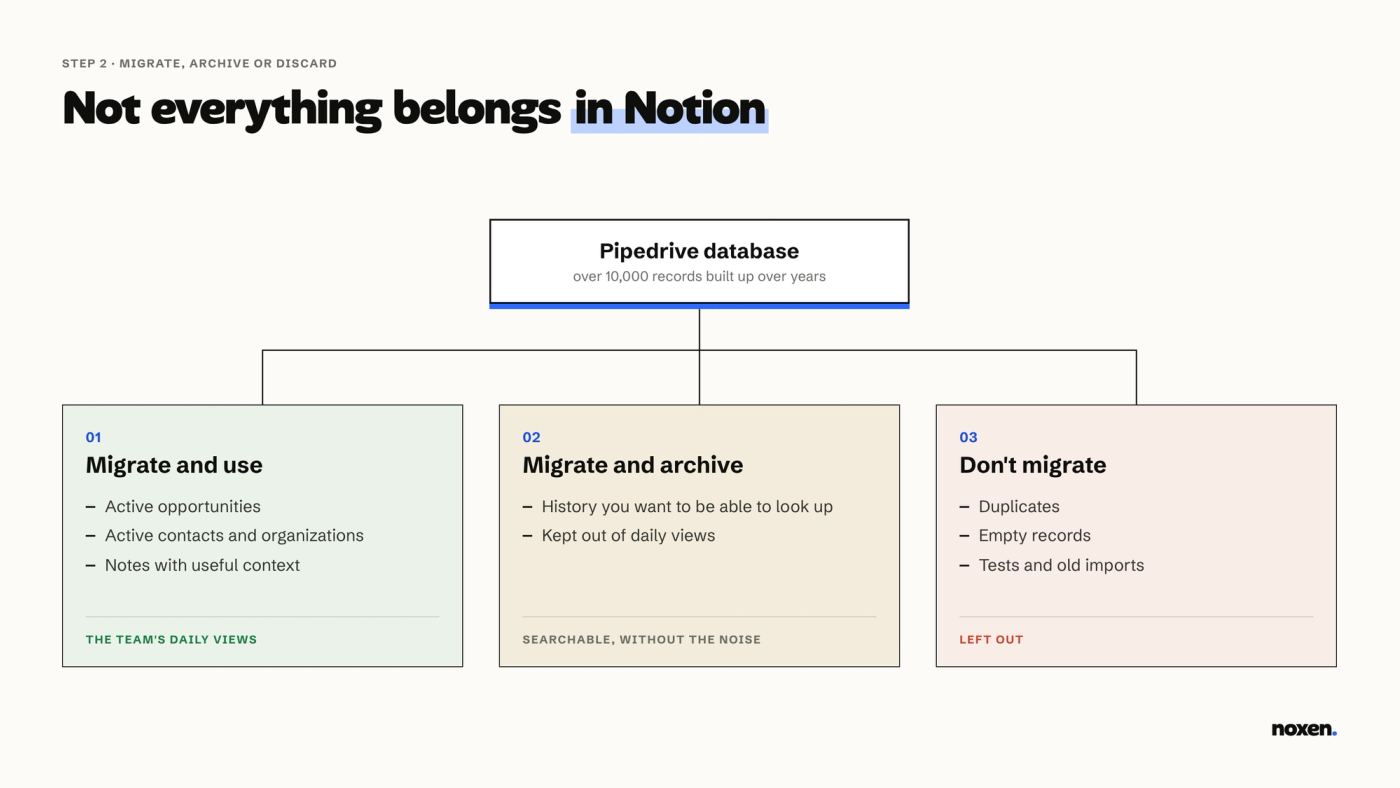
In this project, the figures were more than 10,000 records: around 1,500 contacts, around 8,000 internal notes, and the remaining opportunities, which were migrated, plus around 2,000 items that we chose not to migrate.
Step 3: design the Notion model before importing
This is the step that is easiest to skip when you are in a hurry, and the one that causes the most pain later, when the team starts using Notion and realises that the model was not designed properly even though everything has already been migrated.
- Organisations: "Organisations" database
- People: "Contacts" database, related to organisations
- Deals / opportunities: "Opportunities" database, related to organisations and with a rollup to contacts
- Pipeline stages: Status property, with board views by stage
- Activities: Related tasks, or the database calendar
- Notes: Pages inside the opportunity, or a related "Notes" database
- Custom fields: Properties, limited to the ones that are actually used
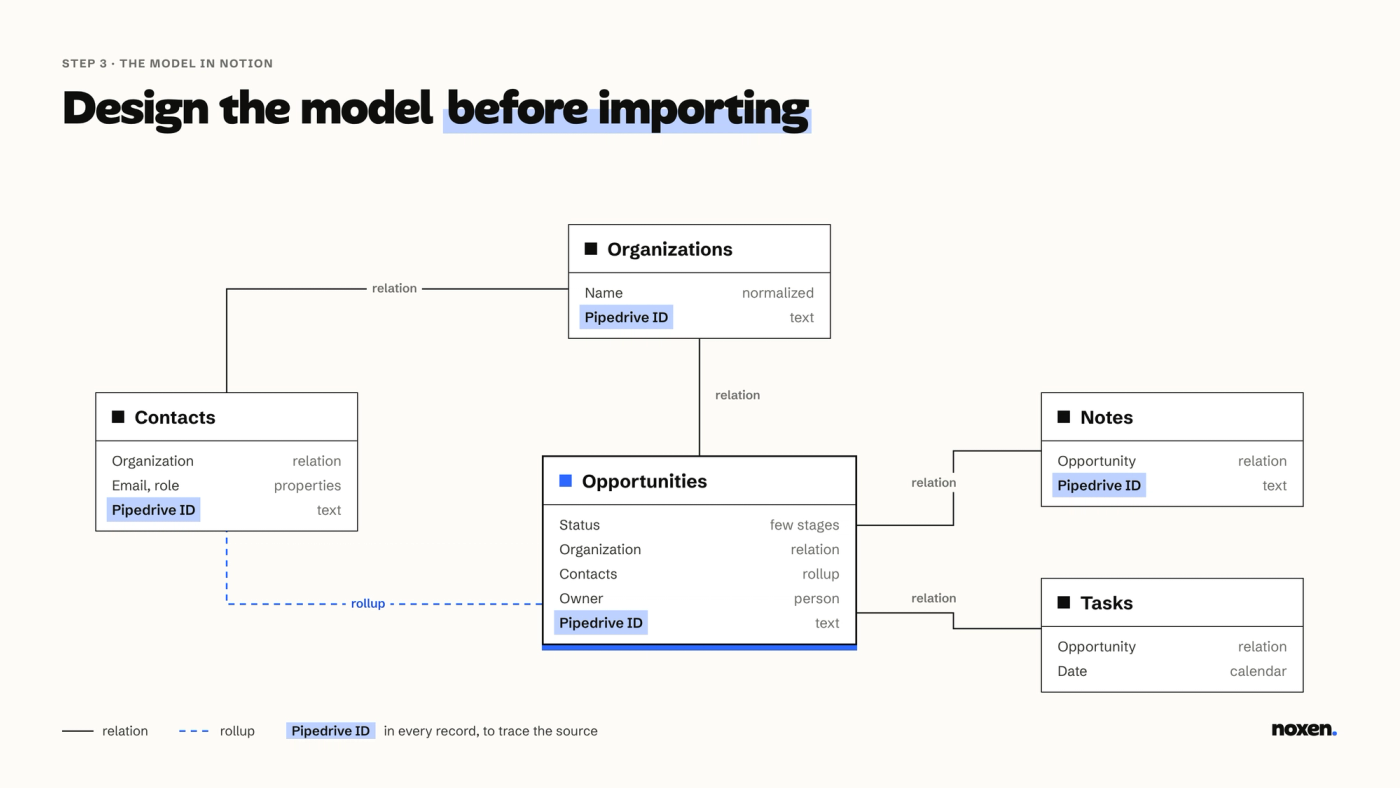
Three decisions are worth making now:
- Notes: pages or text? With thousands of notes, a related database is easier to manage than pasting them into the body of every opportunity. A database also lets you use the features you need to manage and find those notes.
- Statuses. Define a small number of stages, each with a clear entry criterion. If Pipedrive had 12 stages and no one followed them, do not copy them. Condense the stages according to what actually makes sense for your process.
- Owners and permissions. Decide who can see what and who can take actions such as writing to the database or changing its structure.
Step 4: clean, import in phases, and validate
Start with cleaning and normalisation: duplicates, empty fields, and standardised organisation names. Then import in phases, with the team validating each phase before moving to the next one.
An order that works:
- Organisations.
- Contacts, linked to their organisation.
- Opportunities, with relations to organisations and contacts.
- Notes and activities.
- Check: totals for each table, a random sample of records, and five difficult cases reviewed by hand.
Common failure points:
- Broken relations because the organisation name does not match character for character. This is why names should be normalised first, and why it is better to relate records using a numeric ID when possible before falling back to a text property.
- Dates and time zones that shift during import.
- Select properties created with variants such as "Seed", "seed", and "SEED".
- Notion API limits when importing thousands of records by script: you need to control request speed and retry failed requests. This is why it helps to work with a team such as noxen studio, with experience in this type of migration.
Tip: keep the original Pipedrive ID in a property on every record. If something does not add up three months later, you can trace it back to the source.
Step 5: build the system, not just the database
Moving data from one tool to another does not improve the way people work. What changes the day-to-day work is the system you build on top of it. In this case, we focused on creating three systems:
- Centralised pipeline. Each opportunity brings together the investment thesis, the problem the startup solves, the full communication history, including emails, meetings, and calls, and the documents, including decks, projections, and term sheets. Handoffs to the committee are faster, and it takes less time to get up to speed on each opportunity.
- Traffic-light portfolio. For portfolio companies, a traffic-light indicator shows the amount invested, valuation, progress against the business plan, available cash, and exit outlook at a glance. What used to be a spreadsheet that someone updated by hand is now available to the whole team.
- Quarterly follow-up. Every quarter, the team has to request financial, business, and sustainability data from every portfolio company. The system shows what has arrived, what is missing, and what needs follow-up, without long email threads.
Step 6: AI agents working with reliable data
Once the information is centralised and structured, Notion AI has something useful to work with. We created agents and skills to:
- Generate a summary of each opportunity using the team's template.
- Score opportunities with a scorecard.
- Prepare the investment committee materials.
The manual ChatGPT → copy → paste into the CRM workflow disappeared, and the time needed to prepare the analysis fell noticeably thanks to the skills we created for the team.
Step 7: training and adoption
A migration does not end when the last record is imported. We ran training and Q&A sessions for the whole team and supported adoption. Today, 100% of the team works with 100% of its operations in Notion.
Migration checklist
- [ ] Interviews with the people who use the CRM every day.
- [ ] Report on duplicates, empty fields, and surplus records.
- [ ] Decision on what to migrate, archive, or discard.
- [ ] Database model and relations defined.
- [ ] Pipedrive ID saved in every record.
- [ ] Phased import with team validation.
- [ ] Views, permissions, and templates ready before the changeover.
- [ ] Pipedrive shutdown date, plus a backup export.
- [ ] Training and one person responsible for the system.
Frequently asked questions
Can Pipedrive be imported into Notion directly?
There is no migration button. You export from Pipedrive and import into Notion using CSV or the API. The mapping and cleaning are what take the work.
If you download a Pipedrive CSV and import it into Notion, you will have a version of Pipedrive in Notion. You will not have what you are really looking for when you migrate from one tool to another.
How long does it take?
It depends on the volume and quality of the data. A typical migration project takes four to eight weeks.
What happens to Pipedrive automations?
They need to be reviewed one by one. Some can be replaced with Notion automations, others with agents, and some are not worth keeping.
Will I lose my email and call history?
Not if you plan it properly. Decide what to import as notes, what to link, and what to archive.
How many records does Notion support?
Large databases work well with filtered views, but performance depends on the design. With more than 50,000 records, it is a good idea to filter by default and design linked database views for the best possible performance. We also know from direct experience that Notion is investing in improving performance with large datasets.
What if my team is small?
For a small team, the migration is simpler. The audit can take half a day.
How can noxen studio help?
We carry out audits, migrations, and full Notion implementations, including agents and training. If you want to see the outcome of this project, you can read the full case study here.
If you have a CRM that no longer works for you, book a 30-minute call and we will tell you whether Notion is the best option, or who to call if it is not.