
Until now, opening a Notion database page meant seeing all its properties. You could control who accessed each page, but you couldn't hide a specific column or let someone edit one field without touching the rest.
That changes with Property access, the official name for property- or column-level permissions. This feature lets you decide who sees each property, who can change its values, and who shouldn't even know it exists.
This addition fills in an important piece of Notion's permissions model, but it also adds to the already high complexity of managing permissions in Notion, especially with large teams.
One thing should be clear: Property access doesn't replace database permissions or page-level access. Each layer solves a different problem, and in this post we'll focus only on this new feature, fresh from Notion.
The three permission layers in Notion
For a few years now, we've been saying that managing permissions well in Notion is one of the hardest tasks there is.
Right now, at a macro level, the easiest way to understand the different permission layers is as a cascade:
1. Database access defines the starting point.
Here you decide whether users have access to the entire database and with what type of permission.
2. Page-level access decides which specific pages a person can view.
Here you can decide whether a user has access to one or several specific pages within a database they don't otherwise have access to.
It can also happen that a user has limited access to the entire database with a Can View permission, while having Can Edit permission for pages they own or created.
3. Property access decides which properties they can view or modify once inside a page they have access to.
The idea here is that a user can see all or certain pages in the database without seeing every column, only the ones relevant to them or the ones they have access to.
In this sense, if you give a user access to a property but they don't have access to the page, they won't see either the column or the page.
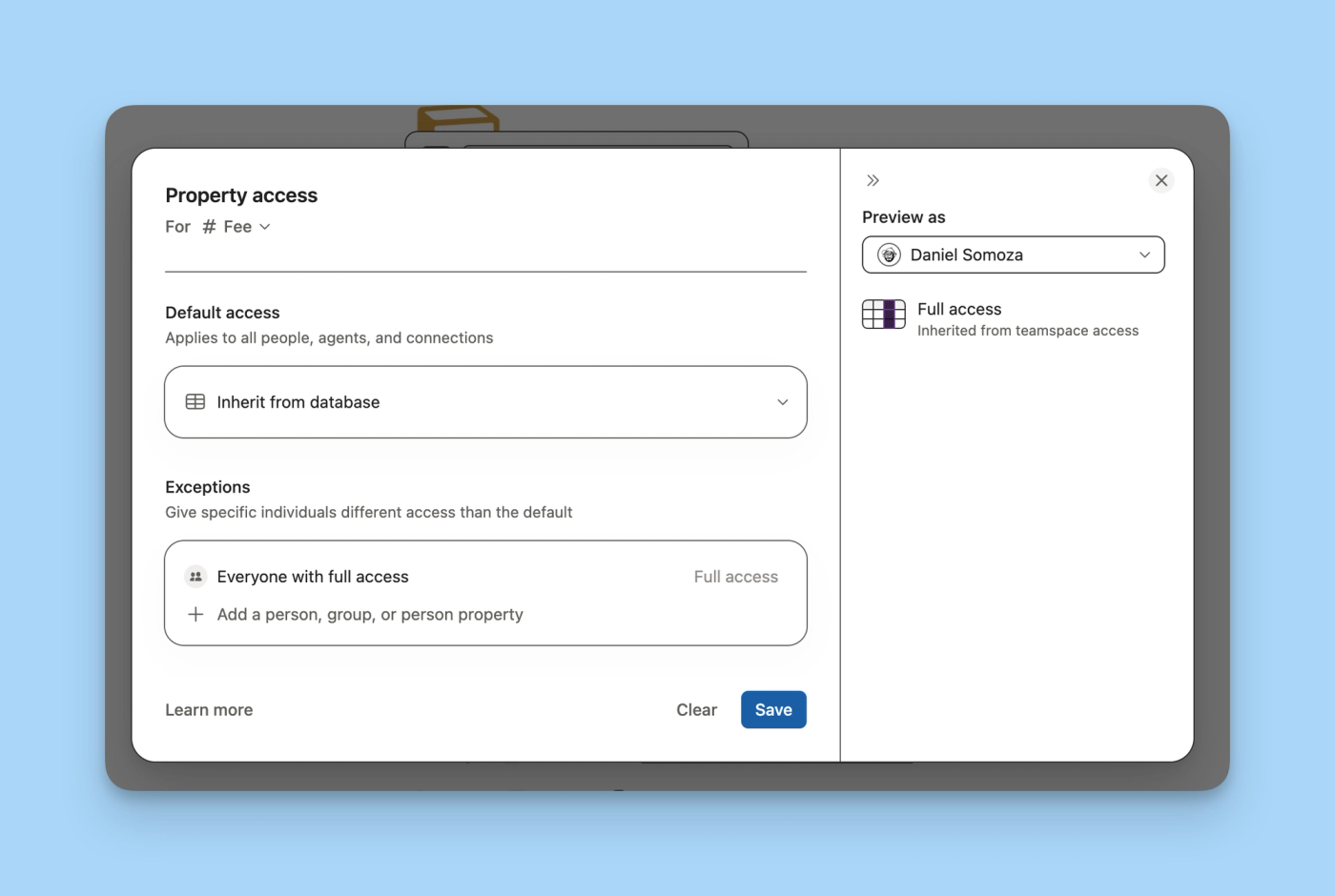
What are column-level permissions in Notion
Column-level permissions in Notion let you set a different rule for each property in a database, as long as you're on a Business or Enterprise plan. Each rule combines a default level with exceptions for people, groups, person-type properties, or agents.
For example, you can:
- Show Status to the whole team, but only let the assigned person change it.
- Hide Internal notes from clients and guests.
- Show Budget to a department without letting them edit it.
- Let an agent update Documentation status without giving access to the budget or client notes.
- Hide internal fields on pages published to the web.
Before this, these cases usually ended in duplicated databases, separate views, or automations that copied data from one place to another. Now a single database can serve multiple audiences without showing the same properties to all of them.
How to configure property permissions
Rules are created in the original database from a table view. They can't be configured from a linked view.
- Open the original database on web or desktop.
- Open the menu of the property you want to control.
- Select
Property access. - Define the default access for people who can already open the database.
- Add exceptions for people, groups, person-type properties, or agents.
- Choose the corresponding level for each exception.
- Use
Previewto check the result as another person. - Save the rule.
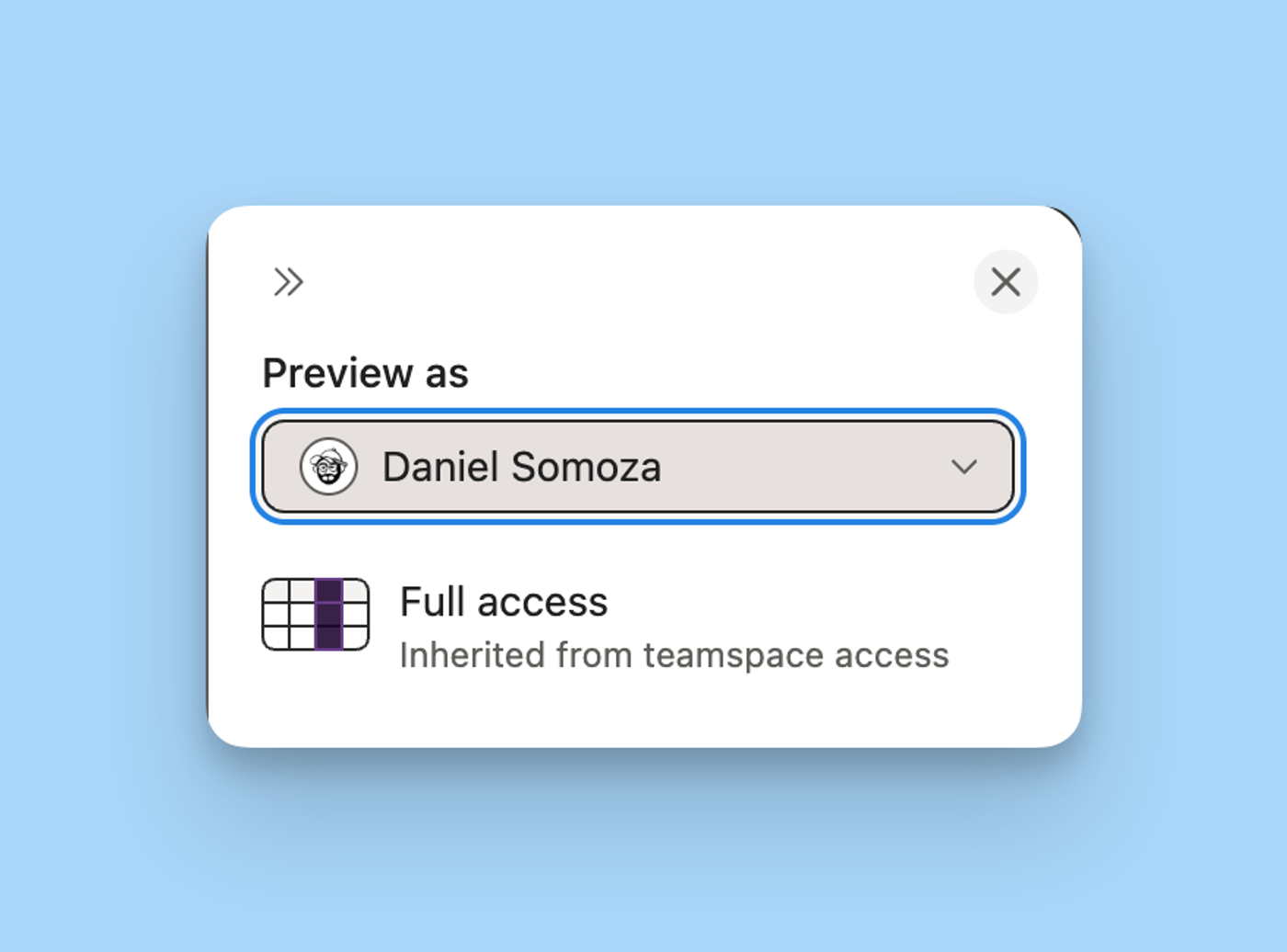
A lock icon identifies properties with their own rule. You can also apply the same configuration to multiple properties.
The first rule may take a few minutes to save because Notion has to move the information in that column. The time increases with databases that have many rows.
The six access levels
Column permissions offer six access levels you need to understand to avoid exposing sensitive data:
- Inherit from database. The property follows the general permission the person has on the database.
- Can edit property & values. Can change the property's configuration and its values.
- Can edit values only. Can update the values, but not modify the property.
- Can view property & values. Sees the property and its values, without being able to edit them.
- Can view property only. Knows the property exists, but can't see its values.
- No access. The property and its values are hidden.
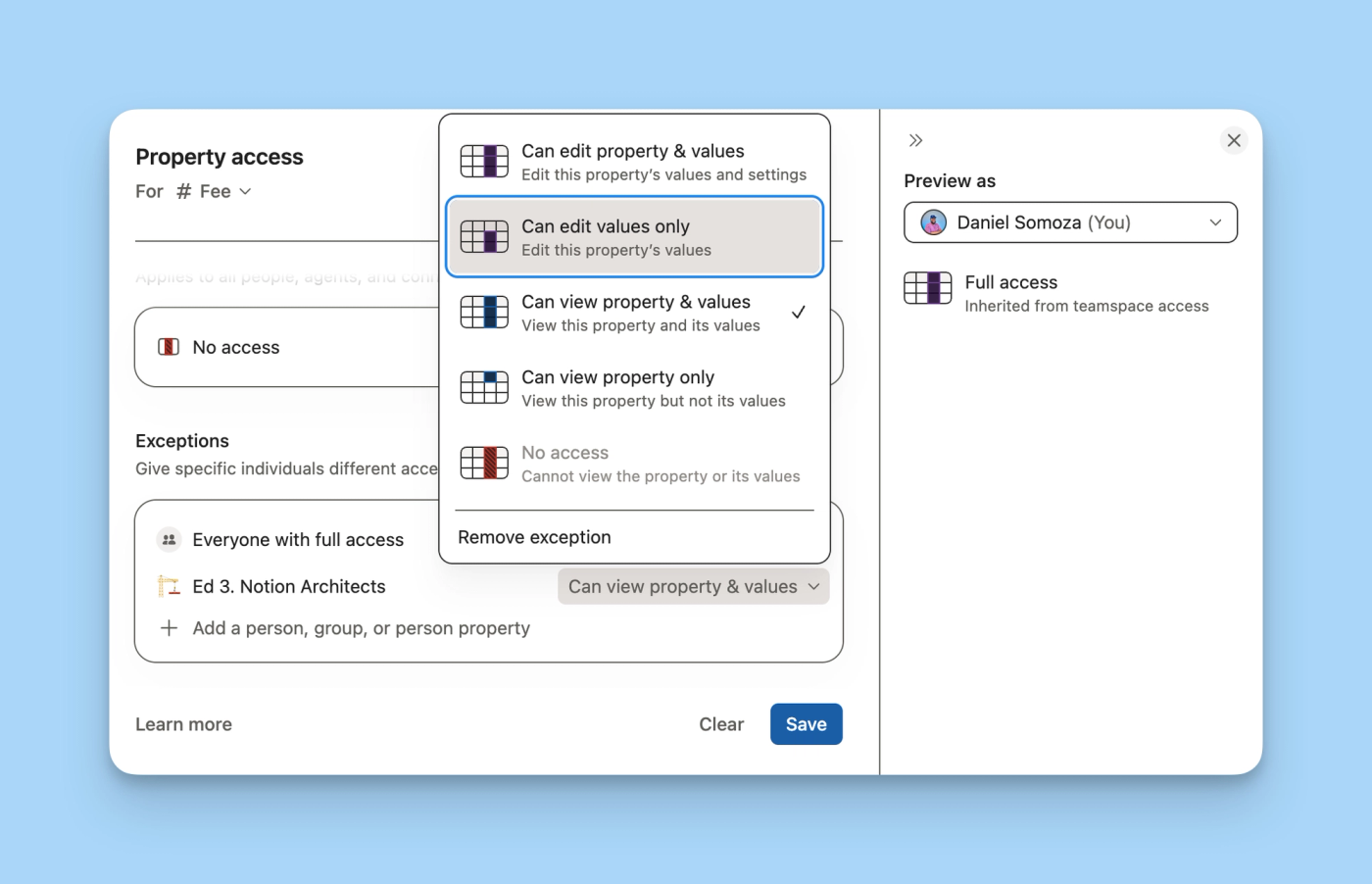
In most systems, the most useful options will be Can edit values only, Can view property & values, and No access. They let you separate operation, viewing, and confidentiality without handing over control of the database schema.
Can view property only has more specific use cases. It can show that an approval or audit exists without revealing its contents. If the field adds nothing for that audience, hiding it completely usually creates a cleaner experience.
A practical example
Now that we've covered column permissions both in general and in detail, let's illustrate everything above with an example.
Imagine a project database where the whole team needs to check the status, but only the person responsible can modify it.
The Status rule would be:
- Default access:
Can view property & values. - Exception: the person listed in Owner.
- Exception access:
Can edit values only.
The result looks straightforward, but there's a second question: who can edit Owner?
If anyone can assign themselves as responsible, they can also gain permission to change Status. That's why, when an exception depends on a Person property, you need to protect both the final field and the field that grants access.
Limitations and common mistakes
Full access always wins
People with Full access to the database keep full access to all its properties. A column rule can't restrict them.
That's why tests should be done with someone who doesn't have Full access. Testing only as an administrator can give a false picture of the result.
The broadest permission applies
If someone matches multiple exceptions, Notion applies the least restrictive one. The same happens when another database or page permission grants higher access.
When a restriction doesn't work, check the full Share configuration, the default access, and all exceptions.
Formulas, rollups, buttons, and automations also respect permissions
A flow can fail or return an unexpected result if the person running it doesn't have access to a required property. Test each formula, button, and automation with the real permissions of its audience, not as an administrator.
If a formula uses sensitive information, also check whether its result indirectly reveals the hidden data.
Not all properties can be restricted
Currently, these rules can't be applied to:
- Title;
- ID;
- Created by;
- Created time;
- Last edited by;
- Last edited time;
- some types of synced properties;
- subitem or parent page relations.
Property access is also not available in wiki databases.
Too many rules can affect performance
Databases with many rules may load more slowly, especially if their views filter, sort, or group by restricted properties. The solution isn't to add a rule to every column without a prior model.
How to design a permissions model that doesn't break
A good starting point would be:
- Administrators: Full access to the databases they manage.
- Team: Can edit content or a lower level, without permission to change the schema.
- External collaborators: access to specific pages through page-level access.
- Agents: only the pages and properties each workflow needs.
- Sensitive properties: No access or read-only by default, with explicit exceptions.
Manage access through groups whenever possible. It's easier to review a Finance or People Ops group than to maintain a list of person-by-person exceptions. Remember that guests can't belong to groups.
Then configure database, page, and property in that order. Finally, test and review linked views, formulas, buttons, database templates, and automations too.
FAQ about Property access
Are Property access and page-level access the same thing?
No. Page-level access controls which pages someone can open. Property access controls which columns they can view or edit within a page they can already open.
Do column permissions grant access to a page?
No. The person needs prior access to the database or that specific page.
Can I hide a property from a specific person?
Yes. You can set No access as the default level and add exceptions for the people or groups who should see it. You can also create a more restrictive individual exception, as long as a broader permission doesn't override it.
Can I restrict properties for someone with Full access?
No. You'd need to reduce their general permission on the database first.
Can I let someone change values without modifying the column?
Yes. Use Can edit values only.
Does it work with Notion agents?
Yes. Agents can receive their own permissions on properties. Notion AI typically inherits the permissions of the user running it.
Is it available on all plans?
No. Property access configuration is available on Business and Enterprise.
How we can help at noxen studio
Property-level permissions let you maintain a single source of truth for multiple audiences. The hard part isn't turning on the menu, but deciding what each role should see, preventing self-escalation paths, and checking that views and automations still work.
At noxen studio we design the architecture, groups, access rules, and per-profile testing. We also review what data each AI agent should query or modify. The result is a system where each person can do their job without receiving more access than necessary.
If you want to review your workspace's permissions and architecture, tell us what you need and book a discovery call.