What are databases?
A database in Notion is a structured collection of pages.
Unlike a simple list or a document, every row in a Notion database is also a page that you can open, edit, and fill with content — text, images, embeds, even other databases or linked views of data sources (also known before as linked view of databases).
What makes Notion databases different from a traditional spreadsheet is that they are not just static cells with values. Each item or row inside the database is dynamic, and can carry lots of information. You can think of the database as a layer of structure on top: properties to classify, views to visualize, filters to focus, and relations to connect. And the page is a box that carries more detail about that item.
If you've ever used Airtable, think of Notion databases as a similar concept but deeply integrated into a document-first workflow. If you're coming from Excel or Google Sheets, think of it as a spreadsheet where every row can expand into a full document.
Why databases matter
Without databases, your workspace is a collection of loose documents. You end up scrolling through a sidebar with dozens of pages, trying to remember where you put that meeting note or that project brief.
Databases solve this by letting you organize, filter, and find information based on the criteria that matter to you — status, date, owner, category, or anything else you define as a property.
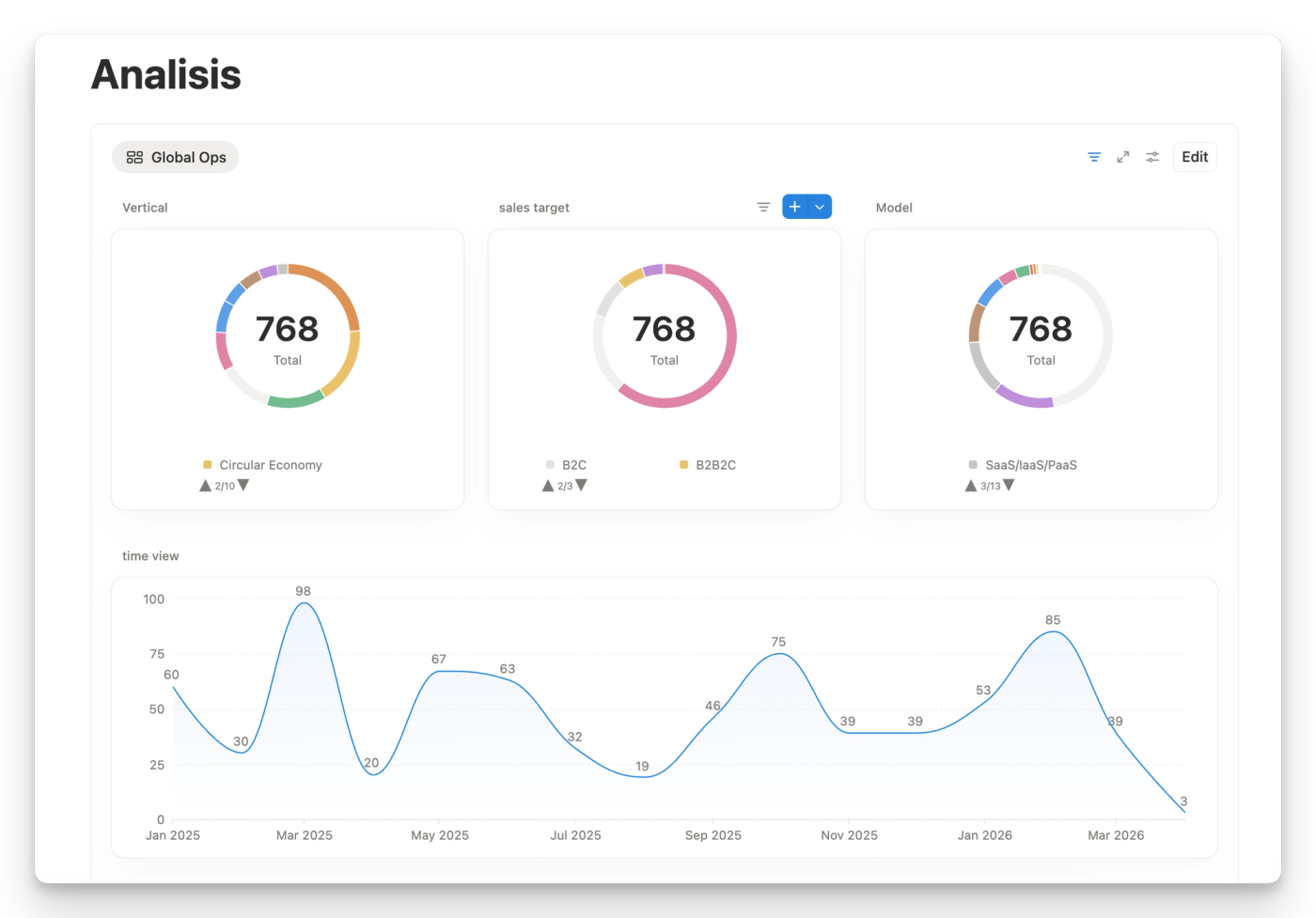
But the real power shows up when you start combining databases with views, relations, and automations. A single database of tasks can appear in different locations and in different layouts: for example it can be shown as a Kanban board for your team, a calendar view for your manager, a filtered list for each team member, or a chart for stakeholders — all from the same source of truth.
How databases work
Create a database
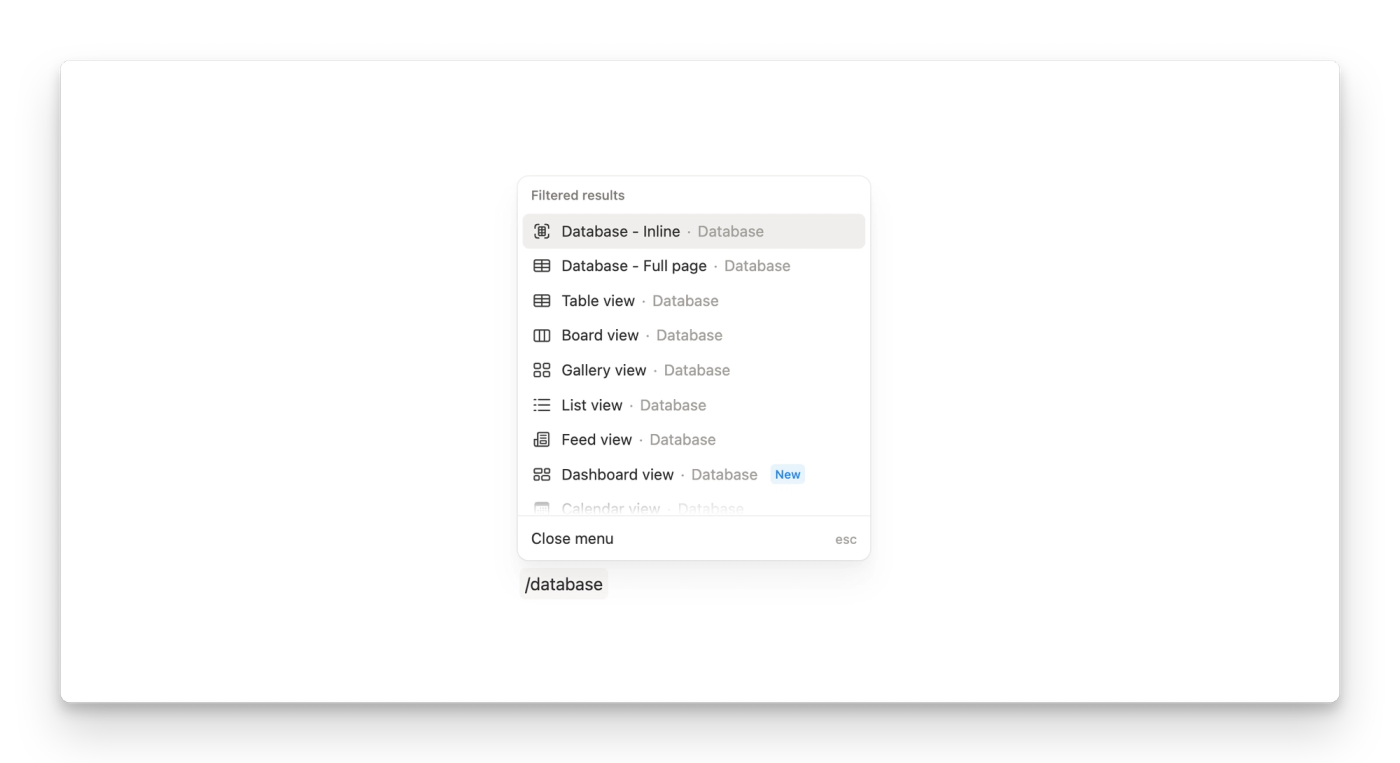
- The easiest way is by typing
/databaseinside any existing page. - Choose whether to use a full page layout or inline layout or if you want to start with a specific view like a list or a gallery.
- Add a title and add your first pages (items, rows) by clicking New page at the bottom of the table.
- Add properties (columns) to classify your pages — things like Status, Due Date, Assignee, Priority, or any custom field you need.
- Add views to see the same data in different layouts — Table, Board, Calendar, Timeline, Gallery, List, Chart, Dashboard, and more.
- Optional: You can use Build with AI to have Notion AI generate a database for you.
Full-page vs. inline databases
There are two ways a database can exist in Notion:
Full-page databases live as standalone pages in your sidebar, just like any other page. They take up the full screen when you open them. This is the default when you create a database from the sidebar.
Inline databases live inside another page. They are embedded within the content and appear alongside text, headings, and other blocks. This is useful when you want a database to be part of a larger document — for example, a project brief that includes an inline task tracker.
You can convert between the two at any time. To turn a full-page database into inline, drag it inside another page in the sidebar (making it a subpage), then open the page and select the six-dot handle > Turn into inline. To turn an inline database into full-page, click the expand icon at the top of the inline database.
Duplicate a database
You can duplicate any database — with or without its content. This is useful when you want to reuse a database structure (properties, views, filters) without carrying over the actual data.
For inline databases, hover and click the six-dot handle, then select Duplicate. For full-page databases, click the three-dot menu at the top right and choose Duplicate. In both cases, you can choose Duplicate with content or Duplicate without content.
Add pages in a database
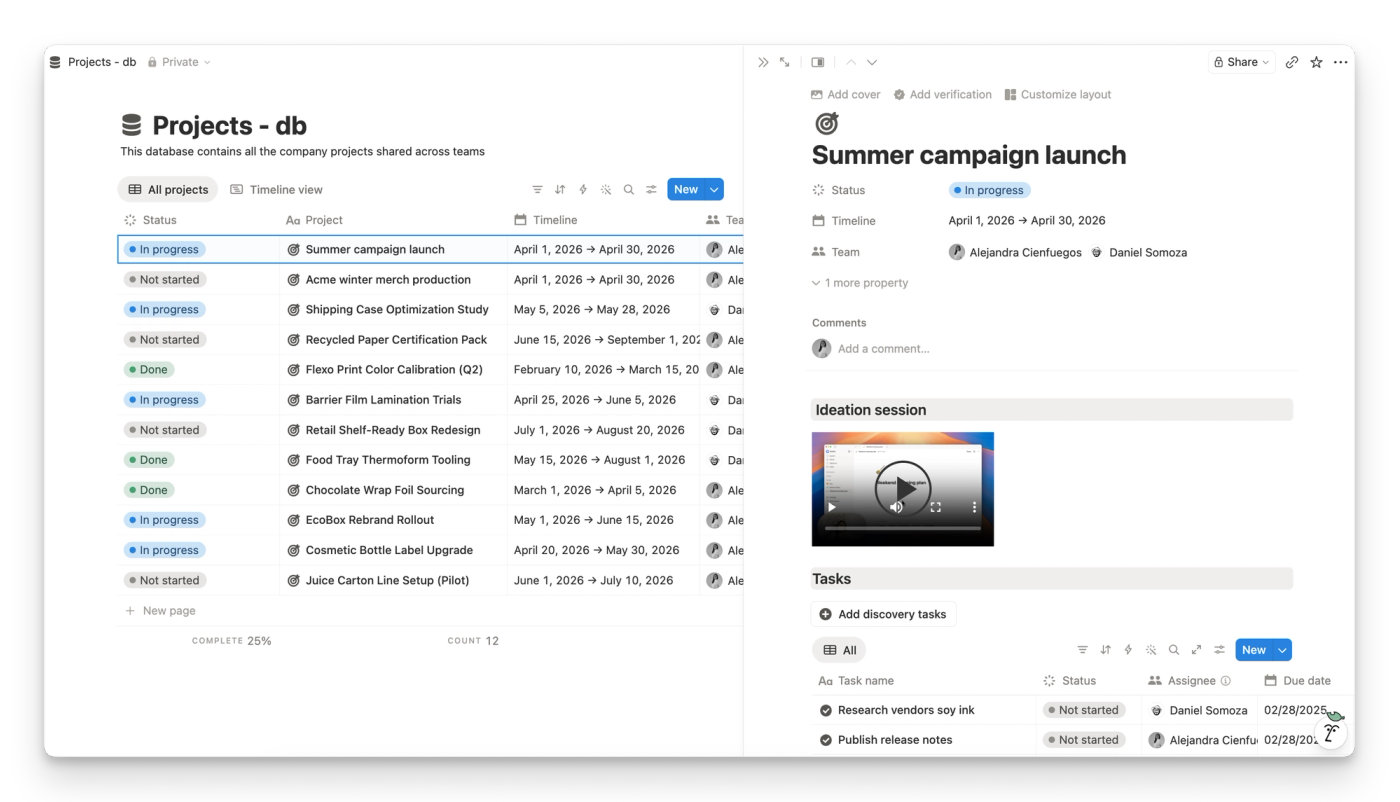
Every row in a database is a page. Hover your pointer on any row and then click “open” to open an item. Inside, you'll see the page's properties at the top (like status, dates, team) and a blank canvas below for any content you need — notes, checklists, embeds, videos, sub-databases, or anything else.
To add a new page, click New at the bottom of any view, or use the blue + button. You can also press the keyboard shortcut depending on your view type.
You can customize how database pages look when opened:
- Choose which properties are visible at the top of the page and which are hidden.
- Set property visibility to Always show, Hide when empty, or Always hide.
- Add a cover image, icon, and comments just like any Notion page.
Lock views
If you've spent time setting up the perfect view — with the right filters, sorts, groups, and visible properties — you can lock it so other workspace members can't accidentally change it.
Click the three-dot menu on any view tab and select Lock view. Members can still edit the data inside the database, but they can't modify the view configuration. They can always create their own views without affecting yours.
Real Use cases
Here are some of the most common ways we see our clients use databases:
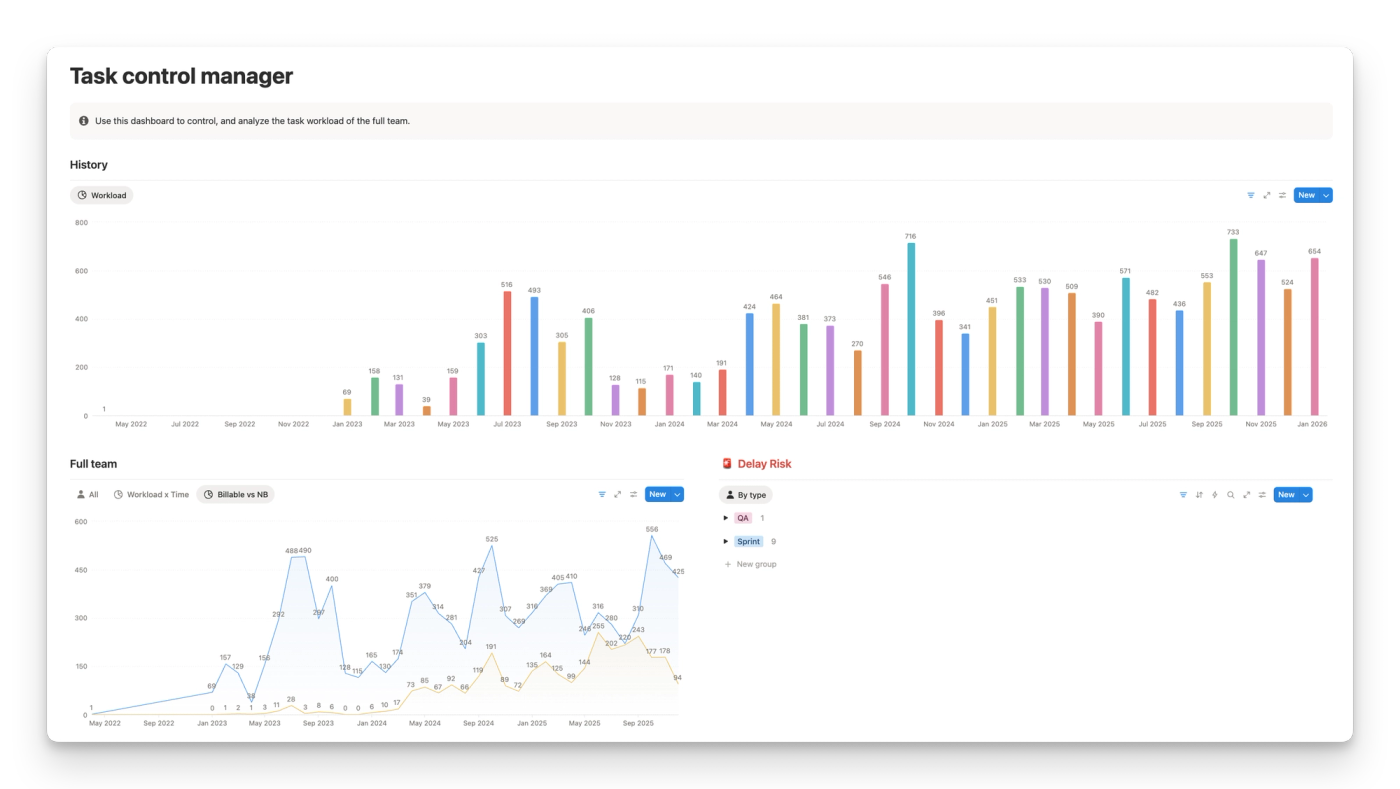
Task management — A single Tasks database with Status, Assignee, Due Date, and Project properties. Different views for each team member + strategic views and charts for managers to easily spot trends.
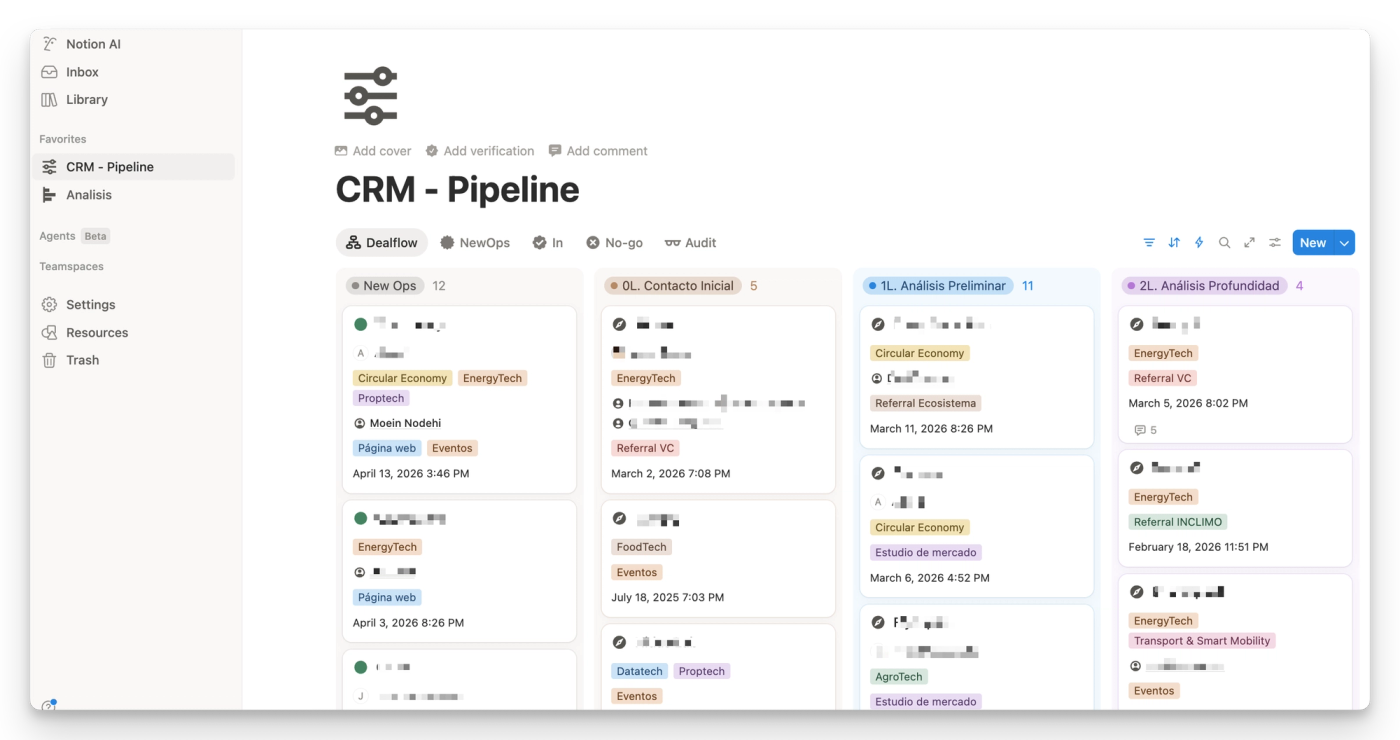
CRM — Contacts, Companies, and Deals as separate data sources in one database. Relations between them to track which contacts belong to which company, and rollups to calculate deal value per account.
Knowledge base / Wiki — Articles organized by category, owner, and last updated date. Verified pages for accuracy. The foundation of internal documentation for growing teams.
Meeting notes — A database of meetings related to Projects and Clients. Each meeting page contains the agenda, notes, and action items. Rollups on the Project database to see how many meetings each project has had.